I'm an early adopter of 4k60. If you write code and you're not on 4k, you don't know what you're missing. 4k is great.
Back then display port ran at 60fps, and hdmi ran at 30fps. My hardware has changed and moved on, but I still default to using a display port cable. It's rare to not find a graphics card without display port, and it's rare to find a monitor without one, so I've never had a reason to try HDMI. As far as I can tell it's a stubborn format that continue to fight to live on. Frankly, I don't really get why we still have HDMI today.
HDMI exists because the corporations behind the HDMI group are the ones that make most of the TVs and dvd boxes. So by pushing HDMI they get to use it for free while the competitors have to pay extra and are at a disadvantage. Nvidia and AMD are not on the HDMI group which is why on pro and enthusiast hardware displayport is pushed much more. My current gpu has 3 displayport and 1 hdmi.
On the tv side, the benefits of displayport are less important since most users are not watching 4k 144hz content and hdmi is now capable of playing 4k at 60hz. So hdmi is not only pushed by the corporations but is also the most convenient option the users want since all of their other hardware uses hdmi and it works fine.
Honestly I think GPUs should drop the hdmi port entirely and ship with a displayport to hdmi cable which works fine because displayport gpus also support hdmi and dvi over the dp port.
You forgot to mention that besides royalties, the main reason HDMI is used in consumers electronics is that it also streams audio with CEC as apposed to Display Port that only does video.
For most consumers, plugging in just one cable that does everything is a lot more convenient.
Edit: sorry, didn't know DP can also stream audio, my bad
> If you write code and you're not on 4k, you don't know what you're missing.
I really don't. Would anyone care to share their experience? Currently, I'm thinking that a vertical monitor would be an improvement for me, but I don't see a reason to get a screen that's several times denser.
* More characters on screen -> easier to glance between different parts of your code , open manuals, etc.
A 4K screen has 3840x2160 pixels. You could see that as either fitting 4 regular 1080p screens in a rectangular pattern, or just over 3 regular screens in vertical orientation (which is what you were considering).
Of course, if your current HD screen is only barely comfortable to you (likely), you will end up needing to buy a screen with larger dimensions (findable) to actually be able to utilize the screen to that extent.
Alternately, you could still go for that higher pixel density; in which case you end up with more readable characters. This does alleviate eye-strain!
Given enough pixels at your disposal (and a large enough screen), you can have the luxury of determining your own favorite trade-off between pixel density and amount-of-code-on-screen. You can do so on the fly, as tasks/whims/fatigue demand.
This is why -at least for now- I'd say you can never have enough pixels.
I'm sure there's a point of diminishing returns somewhere, but I think we have a long way to go before we reach it.
This assumes that your eyesight is good enough to view that much text density at once. In my experience, I just end up zooming in a lot and upping the font size.
Now, an ultrawide. That was truly a game changer in productivity for me.
For coding I've found the best ultrawide resolution is 3840 x 1600, the extra vertical space is much more impactful than adding more horizontal space (a 38" ultrawide can already do 3 columns very comfortably, adding more doesn't help in my experience)
I always found this argument weird: I've used myopic correction since I was 16, and I can tell you that even 4k at 24" is too low for me: actually, if you turn off subpixel rendering (font smoothing), the fonts still looked jagged.
Now, perhaps people are unwilling to wear glasses or contacts for very small vision distortions (understandable), but I do have poor vision, and I want even higher pixel density, because my glasses/contacts get me great vision (I get headaches if I don't correct to 40/20 or something).
We are reading paper books printed at 600 or 1200 dpi (though that often uses similar tricks to subpixel rendering), and nobody complains. As a matter of fact, people can tell a difference between 300 and 600 dpi, yet books are kept at, at most, an arms distance, so usually closer than most big displays today.
I like to work with two columns of windows and the shortcuts to move and tab windows around are easier/more convenient with one monitor versus two. I can easily swap between all of my open windows and snap the two I need side to side. I also find myself moving my head around less and everything just seems a bit more at hand.
Moving windows around on GNU/Linux is not very smooth between different screens, at least in my experience. I am sure with enough time spent on a configurable WM, it would be great, but no need to do that with an ultrawide.
> Moving windows around on GNU/Linux is not very smooth between different screens, at least in my experience.
Depends on the UI you use. Gnome and tiling window managers should do it just fine. I prefer the macOS keybinds (including where full screen becomes a new desktop, combined with the "Magic Touchpad" gestures).
you mention using macOS keybinds with linux. have you found a way to set everything to macOS keybindings? it's super frustrating to relearn every keyboard shortcut and terminals not supporting it fully
What I meant to say is that UI-wise I prefer macOS with macOS keybindings over anything I tried on Linux. That being said, Gnome is pretty good. I can't get used to KDE, but if I were new to this whole thing (or were coming from Windows), I'd try it, too. Tiling window manager is powerful, but not very necessary on macOS IMO.
With regards to keybindings, one thing you can do is get ctrl/meta/alt in the same order as your Mac. Personally, I've swapped ctrl and meta on my MBP while I am using VirtualBox (with Kali) because that way when I'm in the VM I get local consistency. I usually SSH into the Kali machine from the MBP anyway.
With two 1920x1080 displays you can fit even more (or better 1920x1200).
Also, what is the benefit of an ultrawide 2560x1440 compared to 2560x1440 or 2560x1600?
With UW I can have 3 columns the main thing in the center.
With 2 monitors you have a gap in the center or you have to put the thing on the side and turn your head (neck pain)
They're probably suggesting to get a bigger monitor at the same time. You can have somewhat higher DPI and smoother text, and more real estate.
If you're used to 24" 1080P, going to 32" 4K gets you 1.5x the DPI and 1.77x the screen area. For what's now a $300 monitor, that is a pretty significant improvement overall.
The DPI means my characters go from 9x18 pixels to 13x27, which is a big difference in text rendering fidelity and just feels a little nicer. And the additional screen real estate speaks for itself.
Though if you have the space (a very deep empty desk) to put your display like 6 feet away from your face, then the 32" might be a decent way to reduce eye strain.
They will do for sure since you can run them with 200% scaling. That scaling factor gives you the cleanest fonts. Fractional scaling is not as good.
I’m using a 27" screen with 4K which is ok. But I would definitely upgrade to 5k to get 200% scaling once display standards properly support it (Thunderbolt 3 will not be a permanent solution) and screens are affordable
Thunderbolt is much more than an just a display link. You can think of it as something as PCI Express, plus some USB and displayport compatibility. It can technically support everything, but might require custom drivers. I don't expect it to become a mainstream solution for "just pushing down some pixels from A to B" due to its additional complexity and cost.
I haven't followed USB4 too much. I expect it to again have multiple "levels" like USB had before. And whether some or all of those will be high definition video capable it to be seen. For USB-C video was just a mere alternate mode which switched the meaning of the wires inside the cables to displayport. Doing video over the PCI Express subsystem of thunderbolt is a different story.
TB3 can embed displayport, even 1.4 with latest versions (allowing for 8k video, though if I remember correctly, it was 60Hz using only one of the "fake" techniques like compression or interlacing, not sure exactly which). The hard bit is finding which chipset a particular device uses and if it will do 8k (more recent ones) or not.
If 8k is supported, so is 5k, which is kinda getting mainstream.
USB4 will definitely be high definition video compatible, that much we know.
From reading this[0] it looks like USB4 and TB3 will be broadly compatible, modulo the usual sort of tiresome licensing and compatibility BS our industry loves to burden us with. Pity.
I also went with a good 27" instead of a cheap 32", but mine is 200% scaling. I figure this will become a secondary monitor I can use for a very long time.
I'll buy a 32" with no bezel when I can get it with a Thunderbolt 4 port, and my desk will be right about maxed out.
I'm already using a 30" monitor; there aren't a lot of 4k monitors >30" that aren't full TVs (50-60"). Going to 4k at 30" just increases my DPI with no increase in area, and I'm already not using tiny fonts; more DPI isn't what I want. I'd really like 4k at 40" or so: that still bumps me from 100 DPI to 110 DPI, but I get a lot more usable screen real estate. Unfortunately, the market for monitors over 30" is tiny / costly.
There's several, just search. $300 is about the cheapest you'll find a 32" 4k though, don't expect much and it'll certainly be a TN panel with a slower refresh.
I've been using this one. (Typing on it right now) Has a display port I wire my mac into when coding for work and run a Linux box on it when I'm playing. It is a nice panel, for what I paid. 32" @ 2650x1440 IPS. I've got it next to an older 30" 16:10 (2650x1600) and it is comparable.
I do wish I could get my hands on cheap 16:10 monitors. My old 24" dell is vertical, which really makes for a nice way to view the web.
My LG is a little over 4 years old (an LG 27MU67, sadly no longer produced), and the only complaint I have with it is that the capacitive buttons are difficult to use by feel. If I could get another monitor that's exactly the same, I'd do it in an instant.
I have a similar LG 27UD68. The game changer for me was taking off the anti glare coating. It's amazing the relief from eye strain that I got once it came off.
I've bought a million of the Dell P series 4k monitors for my office in various sizes, they range from 200-500 bucks or so depending on the size. Even less used or floor model. I have a few dozen and they've pretty much been bulletproof.
Not at all my experience. Honestly, wayland has been an incredibly sharp improvement over x for me.
Arch running Gnome on Wayland just freaking works. Input is miles better. Output is miles better.
I run two 4k displays and the internal display is 1920x1080. Even dragging windows between the external and internal monitor, with different scaling factors works SO much better.
That's odd. Maybe it's your hardware or your setup or something.
I'm on Linux, and as long as I have screen composition on in the NVidia Settings Panel and software vsync off, 4k60 is as smooth as butter and as sharp as 4k, much like OSX. It's nicer than Windows.
Thank you for that tip. I had a lot of screen tearing before I enabled that option.
Do you have "Force Full Comoposition Pipeline" enabled or just "Force Composition Pipeline"?
Which distro./desktop environment are you using?
I'm running a dual screen setup (laptop + 4k screen over DP) with fractional scaling on the laptop screen (150%). This works pretty well in Fedora 31, no blurred text.
AFAIK different scaling parameters on different screens are not supported by Xorg, so I'm pretty happy with Wayland.
Kde Plasma Wayland with fractional scaling set to 125%. My workhorse applications are Libreoffice, Firefox and Thunderbird.
Each and every of these applications is blurry as hell. My eyes hurt. True that the multi-monitor experience with mixed scaling factors per display under Wayland is better, that's why I am still suffering of that stockholm syndrom.
Gnome does better, I acknowledge that, but their opinionated UI decisions make me feel like a retard.
That's because those applications use XWayland, which means Wayland scaling has no effect and it scales the pixmaps instead. Try export GDK_BACKEND=wayland.
I played with Wayland and decided it is not for me.
I'm running 3x 28" 4k@60 driven from nVidia using prop driver with an Openbox at the Window manager. It is working great. Super fast, super snappy, fonts look fantastic. Same goes for video. I have one monitor dedicated to code, one monitor monitor dedicated to logs ( 6-10 tmux windows ) and one monitor used as a general workspace.
There's an i9 8-core model (on the 15.6 inch model). That's the one I got. I agree that the 16 GB max is disappointing. No problems with touchpad, though I'm used to Windows laptops (I don't use Macs)
Can't speak to 4K but I recently switched to 3 2K monitors (2 vertical on either side of a horizontal monitor). And I quite like the vertical monitors (My setup resembles a tie-fighter) even though I had resisted trying them for over a decade now.
I still have 1 1080p screen attached (just for NVR viewing) and if I drag my IDEA (code editor) window from a vertical monitor to my 1080 then it takes up over 3/4ths of the width. Just to restate that a different way: I gave up less than 1/4th of my screen width but got ~3x the height (just for the 2 vertical screens).
My current setup looks like this with 1 & 3 being vertical, 2 being horizontal, and 4 being my old 1080p horizontal.
    |   | | 4 | |   |
    | 1 ||  2  || 3 |
    |   |       |   |
I have my 2 vertical monitors divided into 3rds (top, middle, bottom) and have keyboard shortcuts to move windows between each region (coupled with a shortcut to move/resize all windows to their predefined default locations). My code is always on monitor 3 taking up the bottom 2/3rds (I find that using the whole height requires too much head/eye movement). I like to use the top 3rd of both vertical monitors for things like chat/reference.
I rather wish we would rid ourselves of ambiguous terms and instead just state a specific resolution. 2K and 1440p and 4K could each mean any of numerous different resolutions.
For my aging eyes, 4K 32” is the sweet spot. They’re cheap too (you can get one for $380.)
I don’t use the full screen for editing (it’s too wide for that), but the edit window is in the middle and stuff that happens in the background (compiling etc.) sits in the virtual background, showing up in the border around the wait window. So I see immediately when things have stopped scrolling.
After using this configuration at work, I upgraded all my home setups as well.
The controller for this one isn't the best and is picky about inputs (I can't get the original Apple HDMI adaptor to work well even at 30hz, so use DisplayPort instead), but it does well enough for the price.
I use 1:1 pixel ratio and a tiling manager to manage the screen 720p subdivisions (3x3 = 9 of these) and will have editors or documentation arranged vertically in 2-3 of these subdivisions, terminals in individual subdivisions, and screen shares or video in 2x2 spaces (1440p) depending on what I'm up to. I have configured hotkeys which place windows in predefined positions in the grid and gotten pretty quick with the muscle memory of them. I aggressively organize windows into spaces, and use the Apple track pad + gestures to move spaces, this acts as a stack of second monitors that I don't have to move my head to see (but can change attention to with similar speed).
32" at arms length seems to be just right in terms of not feeling like I have to turn my head to change my area of attention, and the pixel density isn't too hard on my eyes without any scaling, but both of these are just on the edge (I wish I had slightly larger UI elements, and slightly less FOV occupied) but with these being at direct odds with each other, this device (and a more expensive one with the same resolution and dimensions I purchased for home use before this one at this price point was released) occupies a sweet spot (for me personally).
I'm using a 55" 4K TV for my coding at home. It's wonderful that I always have enough space to put all my windows (using Win 10).
The other benefit is that I can sit farther away from the screen (I make the font larger to compensate). Feels like it's better for the eyes not to have to focus up-close.
I'm on Windows. The TV is a low-end $400 TCL, but it's good enough for me. The text isn't as crisp as it would be with a smaller screen size, but I don't mind. And if I make the font larger, it's smoother (more pixels per character).
Back in the early 90's I had a "Sony News" newspaper layout monitor with hardware that displayed a full 2-page newspaper spread at 16 grey-levels. I got addicted and mourned the loss of viewing giant amounts of source code and terminal/app windows.
When 4K came out, my dream returned. I'm currently working with four 4K monitors, no scaling, that is also Input Director linked to a second system with two more unscaled 4K monitors, but those are portrait (tall). I'm in heaven, again.
43in 4k monitor (Philips BDM4350UC). Not a particularly high dpi but LOTS of screen real estate, and not very expensive. You can have two documents open side by side plus stackoverflow and the rendering of your website. But it requires 60Hz, because otherwise moving the mouse over such a large surface feels laggy and uncomfortable.
It has been several years since I wrote "4K is for Programmers" [1], and in time since we've migrated to 4K 60 Hz LG panels using DisplayPort. But the upsides of a large 4K for programming remain the same today.
I bought a 4K monitor a few years ago. It's beautiful when displaying 4K, but I'm still waiting for Linux to catch up. I used in on a desktop and that worked mostly ok, but on a laptop with different scalings on the internal and external monitors it is hopeless. I'm not even trying to use both monitors at once, I just want Firefox to be scaled from 2x to 1x when I disconnect the external monitor (and vice versa).
I recently bought a new monitor for my office and explicitly avoided a 4K monitor for this reason, it turns out there aren't that many 27" 1440p monitors nowadays. I ended up getting a Lenovo P27h (comes with USB-C) and it works great.
For someone who knows nothing about Steam, can you say more about what the hardware survey means? If it doesn't indicate resolutions in actual use, what does it indicate?
Stats from Steam, Since Steam Is for Gamers only, you are only looking at Gamer focused survey, then of coz you get results where 70% of PC has dedicated GPU.
I have the best part of a decades experience with this. Until recently I was running 3 4K displays on my desktop.
The real issue is with DEs and not Linux per-se. Gnome handles 4K (Hi-DPI) better than most other DEs I've tried but it's still pretty horrid with Hi-DPI and non Hi-DPI displays mixed.
My rule of thumb has been to try keep all displays at the same resolution. For desktop that's easy, for laptop; buy a laptop that's 4K (not always cost/battery effective), or turn off its display when using external (loss of screen real estate) or change the external monitor to 1080p (not ideal, loss of resolution).
I'm always confused by those statements, that it's rare to find a monitor without DP.
I live in France, and actually HDMI is the norm here. All low-range and mid-range screens are HDMI only, and it's rare to find a DP actually.
It's especially sad when you wants to use freesync on Linux, as mesa (the gpu driver) added support in 2018 for DP, but it's still not usable over HDMI.
My impression in Germany and the US was that cheap monitors and TVs come with HDMI, but not necessarily displayport. Anything higher priced or aimed at design, graphics, office work comes with display port and (often also) hdmi.
For example all dell ultrasharp models, hp z27, samsung's uhd monitors, all 4k LG ones.
In addition there are now several monitors offering usb-c connection for video+power+usb hub functionality (e.g. see the wirecutter recommended 4k monitors), which seems convenient.
I don't know about 4k60Hz screens actually. I'm not sure they are in the low/mid range price point (yet) ? I was responding more generally about HDMI and it's usefulness.
IIRC, Freesync will only ever work over DP because it relies on features that the HDMI protocol doesn't/won't ever have.
Also, it's very interesting that things are so different in France with regard to display cables. I would've assumed that, since it's mostly the same manufacturers making everything around the world, they'd have more or less standard models across regions.
The DVI and HDMI protocols doesn’t need anything specific to support variable refresh rate: nothing prevents one to just extend the vertical front porch time.
It’s just a question whether or not the GPU can generate that kind of signal and whether the monitor scaler chip is willing to deal with it.
I do use OSX, but I'm also on Linux Mint. Both are sharp and smooth as butter. I'm uncertain why your experience has been what it has with Linux. Could be drivers or something. I did have to set Mint to work for 4k60. It did not work out of the box properly. (HiDPI was off. Hardware vsync was off.) Mint has never had sub pixel rendering as far as I know. It looks crisp and great.
I think you misunderstand me. I am saying that on Linux text at normal PPI is pretty much as good (to me) as text at high PPI because it has sub pixel rendering and strong hinting that Mac OS X lacks,
OSX has had sub pixel rendering disabled by default since Mojave. It also never had the strong hinting that you can find on Linux and Windows which makes text significantly sharper at the cost of differing from the shape as specified by the font.
They were paying to license Microsoft’s ClearType patents and decided not to pay anymore once retina displays had become near standard for lost Macs and subpixel rendering was no longer necessary
If true, it's a pity they were paying. Apple's SPR goes back to the Woz days, whereas ClearType didn't come around until XP, and wasn't a default until Vista.
Also, apple has a tendency to support fancy features ONLY on its own hardware. I know apple retina displays allowed display scaling, but non-apple displays only let you set the absolute display resolution.
You generally have to use the right equipment -- using mini displayport or thunderbolt 3 instead of HDMI, depending on the generation. It's definitely finicky (much like getting guaranteed 4k60 output, especially through a dock)
One is 163ppi and the other is 218ppi, that’s a huge difference. Anyways, it isn’t that bad if you just buy an entire iMac 5k. But ya, the LG standalone is pricey.
I've found that on cheap laptops it helps to set the refresh to 40Hz in the name of stability- it makes the recover from suspend process more reliable for some reason.
I haven't used 40Hz so I can't speak for it but at 30Hz even my typing is slower, let alone mouse movement, which feels like it's pulling on a short string.
60Hz is a good sweet spot, but as people say 120Hz is noticeably better. At least at 60Hz I can type at full speed, scroll at full speed, and my mouse accuracy when clicking on buttons is good enough.
Honestly, at 30Hz you can feel the input lag. It always feels like the mouse is a little behind, and the key you pressed isn't quite there yet. It's only 33ms, but you can definitely see it.
60Hz is quite usable but if you are used to 120 or 144Hz you will notice it immediately.
Now you've got me curious. I've been playing with various Bluetooth and 2.4GHz-proprietary-wireless mice, along with a cheapie wired one, and never noticed much difference. But it's always been at the same refresh rate.
It gives a ridiculously large amount of screen real estate, though.
For example, on one of those, one can have a side-by-side diff with 120+ character lines and still have half of the screen width remaining for documentation or terminals.
It feels like too much screen for me, I’m happy with a single 5K 27”. I could never get used to the unfocus or having multiple things on multiple screens all at once.
4k@43" is close to PPI of "standard" 1440p@27" or 1080p@22". Considering that the viewing distance probably is bit longer, it sounds pretty appropriate for 100% scaling
You're not reaping the benefits of high pixel density at that size. It's a shame 5K 27" monitors aren't more prevalent. That perfect 2x pixel density increase from 1440p is incredibly sharp.
Writing code on 27” 5k with 2x scaling is incredible. It’s the sweet spot of sharpness to screen real estate and I agree that manufacturers should focus more on this format.
It's not that I don't acknowledge that it's better it just doesn't seem worth it unless specifically buying the 5k iMac. TB3 as a display standard + costs double what a 4k monitor does + lack of guarantee of long term vendor support for either TB3 as an input or 5k.
I also think there are just such economies of scale around 4k as well.
The problem with that resolution is that neither hdmi 2.0 nor the equivalent DisplayPort revision supports it. Therefore it is currently a thunderbolt 3 only thing - which has its own set of issues.
I’m looking forward to see more 5k+ screens once those standards evolve
I heard this advice somewhere, and I invested nearly $1k in 2 4k monitors and required hardware to run them at 60hz. It was a terrible experience, and I ended up selling them at a loss and going back to 2 1920x1200 monitors (love 16:10).
Two main issues for me: I run Linux (4k support is simply _not_ there) and the input lag was very distracting. I tried a couple different 4k monitors, HP Z27 and LG 27UK850-W, and while the LG was slightly better, after a couple months I just couldn't bear it any longer.
I'm a full-time dev writing code mostly in Jetbrains IDEs. Hope this can spare somebody else the cost of trying 4k.
In 2015 I had 2 4k60 monitors, and as long as I setup screen composition in the nvidia settings, everything was as smooth as silk and as sharp as a magazine in Linux, and still is.
In 2015 I was in CLion day in and day out and my gpu was only a laptop gpu with 2gb of vram, so it definitely maxed out my gpu then, but still was as smooth as butter. I had to worry about my computer heating up at the time.
Today I'm on a desktop with a 980. I'm sure it's inefficient, but doing anything in the desktop, like watching youtube in 4k60fps uses about 15% of the gpu according to nvidia-smi. With all my apps running, when I'm not training neural networks, my desktop + firefox takes between 1gb and 1.5gb of vram.
I run two HP Z32 4k monitors side by side in portrait mode. Running Debian Linux Buster. Connected to NUC8i7hvk. LXDE, sometimes KDE. Text is clear. Moving windows around is smooth as silk.
27" would be too small. 30" is about the right size for the resolution.
Plus I have five or six virtual desktops to task switch between various development projects.
I run Linux as well;
Went from 1920x1200 (the fabulous 16:10 ratio) to 2560x1440 (16:9) and would never go back down. I'm using a triple display setup with 1440p, and they operate at 75Hz no problem (no input/output lag). Coding no problem, multi-task no problem, everything is just peachy. I suspect the jump up to 4k is just symptomatic of crossing the boundary of acceptable image scale. Apparently 1440 approaches the boundary, but 4K is well beyond. My GPU is not very fabulous, and in fact is the limited GPU available with an Intel NUC (Hades Canyon), but the connector to the display is using DisplayPort, and that I believe is the point the OP is trying to make with the Opinion Piece. I find this conclusion troubling because DP is a few thing: a cable standard (shielding, twists of pairs, etc), a differential signaling protocol, and the features layered on top. A lot of people conflate one aspect with the other, which quickly becomes problematic. For example, the DP protocol was incorporated into thunderbolt 3, so the high level stuff mostly, protocol, etc. The thunderbolt 3 cabling sufficiently meets the standard for the cable standard parts (shielding, isolation, etc). I guess where i'm going with this is that HDMI is slightly more problematic here, especially in terms of the matrices of cable standards versus protocol standards, and the consumer buying the cable or understanding what protocol they need, etc... HDMI made the mistake of introducing a kind of "high speed cable" in the HDMI 1.x protocol era, rather than simply jumping to HDMI 2.x, that is to say NOT aligning major spec jumps to to physical cable requirements, but instead to protocol features. It's probably not a fair comparison with DP and HDMI, since DP sorta didn't have the issue, but it becomes apparent that the future generations of DP cable bring physical cable requirements with the next major version bump, protocol topics are there too but we can get to those later. So for example, DP being in Thunderbolt 3, and now Thunderbolt 4 being drafted, and and.. the combination of Thunderbolt 4 with USB 4... which is capable of transporting HDMI 2.x spec protocols. Ugh... So it seems the physical cable specs of video cables is coming to an end, except for high-end video products (e.g. 8K and beyond). In the general purpose (4K and less) sense there will be one cable for both HDMI and DP (where DP is the default protocol). So all that said, I don't really see HDMI the protocol being a problem, but certainly HDMI cables and interfaces are a problem, perhaps not so big a problem considering most modern cables meet or exceed the requirements. But there are outliers, and there is the problem.
For machines that don't need to mix scaling this is pretty much a solved problem - I've run Windows at 125%, Linux/Cinnamon at 150% and OS X at ~150% and they've all preformed just fine for coding tasks.
The only mess is if you have mixed displays - and even that is mostly still problem only on Linux.
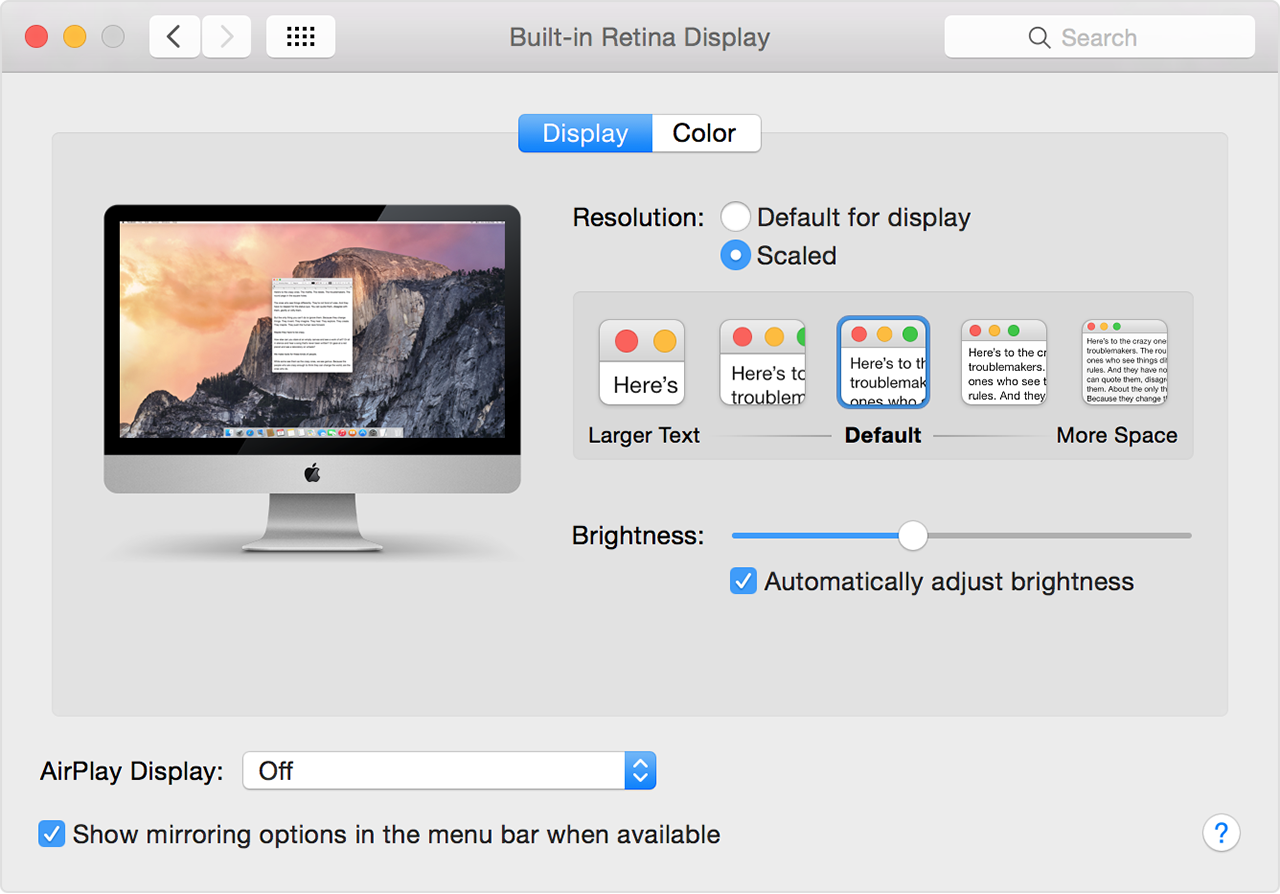
It works with non-Apple displays (I use a Dell 4K monitor with my Mac Mini), but the OS has to be able to detect that the pixel density is suitable. It’s possible that macOS can’t discern enough about your monitor.
If you option-click on the resolution options you may be able to manually override it.
Careful with that setting. Any non-integer scaling like 1.5x will force macOS to render everything in 5K (I think?) and scale it down to the target resolution - this is way more taxing on GPU, battery life etc. than 2x scaling which simply display all content twice as large (everything is delivered with 2x assets after all).
I actually don't use HiDPI on my 4k 27" monitor. Instead in Accessibility Settings I turn on Large Text (Linux Mint), which is like 1.5x or 2.x font sizes. All icons I can see quite well as they grow too, but whitespace is minimized, so I get a lot more screen real estate and it would fool others. It looks like HiDPI.
The only problem with this approach is the mouse cursor stays tiny, and it doesn't have the OSX shake option to find it, though I rarely lose it so it isn't much of a problem.
I will warn that 4K60 actually has hardware requirements. 4K Netflix requires 3gb dedicated/shared VRAM and really 4gb doesn't hurt. No modern GPUs that I know if will stay in P0 with enough 4K displays attached to them. 4x 4K is also a limit most of the time.
1440p monitors are usually better at the same price point in some way. Maybe refresh rates... Maybe image quality... Well specced 4k displays still cost a decent amount.
Still I would say now is a decent type to leap into the ecosystem. The era of 1080p/1440p has already peaked.
> I'm an early adopter of 4k60. If you write code and you're not on 4k, you don't know what you're missing. 4k is great.
4K adds a lot of screen-estate. Having a "normal" 27" 4k screen, I recently worked on a ultra-wide curved screen. It blew me away. I can so much recommend curved screens over regular 4k screens. All you applications can fit next to each other on eye height.
This is a very... erm... "early PC era" way of thinking.
Back in the days, many moons ago, both displays and software typically had a fixed DPI (96 for Windows) and so a larger resolution was basically the same thing as a larger display. The two were interchangeable.
In the photography and print world (and everywhere else) the resolution is just the "level of detail" or "sharpness", completely independent of the size.
With Windows 10, Windows Server 2016, and recent-ish OSX the display resolution is finally decoupled from the display size. This is especially true at nice even resolutions such as precisely double or triple the legacy 96 DPI (200% or 300% scaling).
I've been using 4K monitors for over a decade, basically since they've been available and it always cracks me up to see some people run them at "100%" scaling with miniscule text. That's not the point. The point is that at 200% scaling text looks razor sharp, but is exactly the same size as it would be at 1920x1080.. You can clearly distinguish fonts that look virtually identical at 1920x1080. It's amazing, you have to try it yourself.
Caveat: If you need (or nearly need) prescription glasses, 4K or higher resolutions may not make much of a difference for you. In this case, you're likely better off having a bigger screen and/or a very big screen further away from you.
Windows has had some PPI scaling at least since the XP days, and it always has been pain in the ass. Sure, with integer scaling it should work pretty well, but it is the biggest thing holding me back. And especially as I also use Linux on the desktop which is not much better.
windows scaling is totally fine. its not perfect, but it works a better than people give it credit. i have yet to experience a program that's giving me issues.
the only caveat is that it doesn't work properly if a program is on two monitors which have a different scaling factor (i.e. the scaling from one monitor is applied for the whole program)
That whole reasoning seems suspect to me, honestly. "I want 4x as many pixels so that every pixel can be scaled up to 4 pixels!". Sure font rendering can take advantage of that, but is the difference significant? To my eyes, no, not really.
> I'm an early adopter of 4k60. If you write code and you're not on 4k, you don't know what you're missing. 4k is great.
Important caveat: the display needs to actually be big enough for this to matter. I've got the 4k Dell XPS 13, but I run at a lower resolution, since I simply cannot perceive any difference.
I have tried hdmi 2.0 and Displayport from a 32” lg 4K to an Ubuntu 18.04 box with a 1050ti, both seem to work in Linux and windows 10. Displayport to usbc also works at 4kp60 for my MacBook. This was tested with a cheapo monoprice cable and a LG cable.
Edit: code & text is 100% better on a 4K moknitor with proper scaling.
I have a large 4K monitor when I'm my desk in the office, a smaller 1920x440 at home, and just the (Retina) laptop screen when I'm elsewhere.
My sense is that the 4K monitor is a bit nicer than the 1920x440, but nowhere near enough nicer for me to have ever felt motivated to replace the 10 year old monitor I already have at home. The real difference is between 2 monitors vs just the one.
I also briefly had a 15" laptop with a 4K monitor, and UGH NO CRANK THAT RESOLUTION DOWN RIGHT NOW. My take-away: Ignore the marketing fluff that focuses overmuch on resolutions; the resolution is not an end in and of itself. Pick a screen size, and then pick a resolution that gives you an appropriate DPI for that size.
Don't ever turn the resolution on a 4k monitor down, unless it's for performance reasons (e.g. gaming). Every OS has UI scaling built-in now. It works perfectly in Windows 10 and MacOS. It works pretty well in Linux, but given the mess that is Linux UI toolkits, not all applications will scale properly. Everything I use regularly looks fine, even in experimental non-standard scaling like 175%.
Running a 4k monitor at 1920x1080 looks like crap. Running a 4k monitor with 200% UI scaling gets you the same dimensions but glorious smooth fonts.
> Don't ever turn the resolution on a 4k monitor down, unless it's for performance reasons (e.g. gaming). Every OS has UI scaling built-in now.
So, I have a game I want to run hitting the following properties:
- The game should only render 1920x1080. This keeps fps around 30.
- The game should cover my whole screen.
- Running the game should not resize all my other open windows.
All of these seem like stupid-obvious goals, but there doesn't seem to be a way to get them all. The game itself offers fullscreen (which automatically resizes my other open windows, when the game resolution is lower than the desktop resolution -- I don't understand this ridiculous anti-feature, but it doesn't seem to be configurable), and windowed mode where the window occupies a range of pixels equal to the game resolution (which is a really small window, and really hurts enjoyment of the game). I've tried sending win32 messages [well, SetWindowLong; I think "messages" are something different] to a 1920x1080 game window to expand its rectangle, but the game just starts rendering higher-resolution images for the bigger window -- even though it's configured for 1920x1080 -- dropping the frame rate.
Are you saying there's a way for me to scale this window to get the behavior I want? (Render a 1920x1080 image, then paint it over the 3840x2160 desktop.) What is it?
If the game offers "borderless fullscreen" or "fullscreen windowed" then that's what you want. There are 3rd party utilities that can force it for games lacking the option, but I can't speak to how well they work.
Right, that's what I tried to do, but the game renders an image by referring to the window size rather than the graphics settings. (Or at least, when I force the window into borderless fullscreen, fps drops to the same rate at which it normally renders 3840x2160.)
Maybe enabling GPU scaling in conjunction with the game's regular fullscreen mode set to 1920x1080 might do the trick?
In that case, instead of physically changing your monitor's resolution when entering (true) fullscreen mode, the GPU should simply rescale the game output as required to match your regular resolution.
Some mix of the above. It's probably been a good half decade since I actually looked at the resolution setting for that monitor, and I'm definitely getting into the years where brains will fart.
An appropriate DPI is at least 300 at laptop distances which is the point when you start to not need subpixel antialiasing and font hinting which sacrifices letter shape for sharpness.
But! HDR is more and some video standards have the necessary extensions but it can also be done from software but then only compatible software will be HDR. Check https://superuser.com/a/1335410/41259
> The HDR mode will automatically activate if the monitor receives a compatible signal, but the device only relies on a software-based implementation. When active, the HDR representation adds a nice touch of extra color pop and a seemingly deeper contrast range, although the monitor’s limitations will come into play here.
And this extra has been added to HDMI 2.0b (compared to HDMI 2.0a) and for this reason it is said HDMI 2.0b support 4k @ 60Hz HDR when it can't because it doesn't have enough bandwidth (well, it does for 4:2:0) and DisplayPort 1.2 is said to not support it when it does have enough bandwidth.
Yeah, it's kinda sad how close we are to the specs and that they aren't getting much ahead. Higher resolutions just chew through that bandwidth quickly.
Apple had to really hack around to get the Pro Display XDR to do 6k at 10-bit at 60Hz. They are using USB-C w/Thunderbolt for that and actually pushing two DisplayPort 1.4 signals down that cable. Clearly cludgy at best. Even then at 6k/10-bit/60Hz the other USB-C ports on the monitor can only work at USB 2.0 speeds because the link is so saturated.
6k/10-bit is a bit niche right now for sure, but I'd sure love to be able to daisy-chain my three 4k monitors which I can't do, and 120Hz is becoming very mainstream (although actually rendering 4k/120Hz is problematic on the graphics card side too).
It also is the equivalent PPI of the Apple Cinema Display (which was 2560x1440 27”), but 2x for “retina” monitors. I eagerly await DP 2.0 to become widespread so the rest of the world can catch up to the XDR and LG UltraFine 5K.
The state of the art, at least at consumer levels, uses an FPGA to do image processing, and has a fan to cool it (that many people complain about), is here[0]. 144hz over displayport. I also don't think it can do full HDR 4:4:4 at that refresh rate.
This article does contain useful information especially since a lot of this is way less obvious than it should be to a non-technical end user.
My crappy Apple USB-C Multiport adapter simply refuses 60Hz 4K on an HDMI cable that works out of the box with Windows 10 on a GTX 1060. This is despite the fact that the product page says that this configuration with my particular Mac is supported (edit: it’s actually because I have an old adapter).
Then I use a cheap $8 USB-C to HDMI cable and it works fine on two MacBook Pro 15/16” computers (be careful here as a 2016 USB-C MacBook Pro 15” doesn’t support 4K 60Hz over HDMI but the identical-looking 2017 model and newer do).
Frustratingly, Apple doesn’t make a similar USB/power/video adapter for DisplayPort, just for HDMI. Nobody else seems to make one either unless you get into the world of expensive hubs.
For our older 2015 MacBook Pro, Thunderbolt 2/mini displayport to DisplayPort is the option.
What I’m getting at in a poorly organized fashion is that the world of single cable charge and display and device hub is definitely not here. There’s one display on the market that supports USB-C charging above 85W and it only works with newer Macs.
You can get basically the same display for $1000 less with an LG 27” 4K display and just use DisplayPort and HDMI with adapters. Saving yourself from plugging in a second thing isn’t worth $1000.
I can’t for the life of me figure out why the people who make displays with built in power supplies for USB-C charging didn’t just default it on the 100W maximum that the spec allows. What short-sighted design!
In any event, I think I don’t mind keeping that piece of hardware separate from my display, not just for reliability but for weight and bulk as well. I can easily hide a power brick under the table.
The situation with HDMI is confusing enough without also introducting USB-C into the picture.
A lot of video cards and some monitors will negotiate a DisplayPort link over HDMI ports and HDMI cables.
For instance, my Intel NUC has only a single HDMI port, but plug a HDMI to DisplayPort cable in, and it'll negotiate a DisplayPort 1.2 connection to my Dell U2711 at 2560x1440@60hz. Plug a HDMI to HDMI cable in, and plug into the HDMI port on the same monitor - no bueno, it's HDMI only and we're stuck at 1920x1200.
Another monitor, I forget the brand, was happy to negotiate DisplayPort over a HDMI port.
Introducing USB-C adapters into the mix and some adapters appear to support USB-C Alternate Mode to carry DisplayPort but only have HDMI connectors, others won't.
Then we run into potential issues where the video card's outputs may not have been wired into the USB-C controller. Though this afaict is mostly applicable to desktops with discrete GPUs.
Displayport has an extension called dual mode which basically all modern dp devices support which lets them use passive converter cables to hdmi and dvi. Usually you get a displayport port and you convert to hdmi. This must a displayport chip connected to a hdmi port which is pretty whacky but I can't see any reason why it couldn't be done.
> I can’t for the life of me figure out why the people who make displays with built in power supplies for USB-C charging didn’t just default it on the 100W maximum that the spec allows
I asked myself the same question, and I guess it is either one of the following:
a) 65W is what the reasonably priced chipsets available on the market support, and it would take a lot of costly auxiliary parts to support 100W
I'm not on a Mac anymore, but this sounds very similar to something that I experienced when switching over to Linux and trying to use the Apple adapters that I had for my displays.
I can't remember the exact terminology, but there are basically two types of adapters: active and passive. Passive adapters defer some of the work to software on the computer while active have everything needed built in.
All Apple adapters are passive and because of that when you try to use them with non-Apple computers that don't have the expected software/driver...they don't work.
It's been a while but I experienced this with mini-display port to DVI adapters. I don't know if it carriers over to other types as well.
Honestly that might be why the adapter is relatively cheap.
A lot of other solutions especially if you need single cable operation and >65W or especially 96W charging for the 16” MacBook Pro are active hubs that cost well over $100.
But those are all cheaper and more flexible and cross platform than buying the 27” UltraFine display. My eyes can’t tell the difference between the UltraFine and the 4K 27” LG display that cost me $290.
> Frustratingly, Apple doesn’t make a similar USB/power/video adapter for DisplayPort...
I use just a cheap USB-C - DP cable for this. Works fine. Of course no USB ports and can't charge with that, but not a huge issue since there are more ports.
Yeah that’s what I ended up doing as well, although mine is a USB-C to HDMI adapter.
My display has two HDMI and one DisplayPort, so I’ve allocated one HDMI for USB-C Macs, one HDMI for the desktop Windows PC, and one DisplayPort for Mini DisplayPort devices (2015 MacBook Pro).
In my opinion, buying a two-port MacBook Pro of any kind is a mistake for this very reason, although I guess more adapters can solve that problem...
The bigger part of your problems will go away if you do yourself a favor and refrain from tge end-consumer hostile decisions the comoany in cupertino will take for you.
Hmm well it’s not like every laptop or adapter that has HDMI involved is guaranteed to support HDMI 2.0, either. I’m not sure how this is an example of Apple doing something user-hostile. It’s an example of two similar industry standards existing and having different levels of capability at different times.
Plenty of non-Apple products don’t support 4K 60Hz and plenty of non-Apple laptops require some kind of adapter to connect to a full size HDMI port, like the current XPS 13.
In fact, Apple switching to USB-C was moving from a proprietary connector (MagSafe) to an industry standard. So I’m struggling to figure out how that’s user-hostile. It’s better than all the business laptops with proprietary dock ports or the proprietary surface connector.
I guess it sucks that I was an early adopter and I got the early adapter but on the other hand 4K displays weren’t anywhere near affordable in 2016.
For me the sweet spot is a triple monitor setup with all three monitors in the neighborhood of 200 DPI, and running at 200% scaling in either Windows or Linux (Cinnamon).
One monitor is my ThinkPad's 14" WQHD display. The other two are 24" 4K displays.
One of those displays is horizontal, immediately above the ThinkPad display. The other is vertical, to the left, with the bottom of the monitor close to my standing desk. (Of course it could be on the right if that suits you better.)
Because I'm old enough that my eyes can not adjust their focus like a younger person's eyes, I make sure that all three monitors are at the same distance from my eyes. And I have a pair of single vision prescription glasses adjusted for that distance.
Since I also use the ThinkPad on its own, that determines the focus distance: about 20 inches. The external monitors are also at that distance from my eyes. Each of the three monitors is tilted at the appropriate angle so that the plane of the monitor is perpendicular to the view from my eye position. In other words, the "normal" at the center of each monitor points directly to my eyes.
I can't use big monitors like a 32", regardless of the resolution. The focus distance changes too much between the center of the monitor and its edges. But 24" is small enough that the entire monitor is in focus with my single vision glasses.
Did I mention single vision glasses?!
Unless you are young enough that your eyes can easily refocus, do yourself a favor and get these. Not a "reading" prescription - that is typically 16", much too close for typical computer use. Bring your laptop to your optometrist and get single vision lenses for that distance. It will probably be about 20". Then when you use external monitors, make sure they are also at that same distance.
Do not under any circumstances use progressive lenses for computer work! I have seen far too many people tilt their head back and lower their gaze into the bottom part of their progressives. This is a recipe for neck and eye strain. You will be amazed at the improvement that a good pair of single vision lenses give you.
I agree wholeheartedly. My optometrist created an extra pair of single vision glasses that were backed off by about one diopter from my true distance prescription (YMMV) and it is much much more comfortable for computer work than reading glasses.
I actually use a pair of progressive glasses, with the top 60% set for a distance of <my monitor> and the bottom for reading. It works pretty well for me.
Of course, the most recent eye doctor I'm going to can't get the distance right for the computer glasses, so I can't use the new glasses without leaning in. I even have my old pair for reference and I explained it (I thought) well and showed the distance... and they've tried 3 times and can't get it right. Super frustrating.
To anyone has a slightly older Mac and thinking about getting a 4k screen: DON'T.
4k is not supported on many older models. Check your official specs. Most Macs has max 1440p@60hz output. 4k is only supported @ 30hz, which is no good for daily usage.
And the main problem is, if you get a 4k monitor( to future proof your setup), and try to use it at 1440p, everything will be blurry and pixels will shift and distort.
Just get a native 1440p monitor.
If you have a never Mac, getting a 4k 27" monitor may still be a bad idea. Since 4k is too much for a 27" screen, you will need to use scaling in Mac options, and ideally set it to "looks like 1440p" But this will cause your mac to do 1.5 scaling and create a burden in your GPU and CPU. It will render everything doubled at 5k and try to scale it to 4k. If you're using a Macbook, your fans will never stop even on idle. This is even worse performance than getting a 5k monitor and using it native 2x scaled, which is easy on GPU.
One side note; there is no USB-C Hub that offer 4k@60hz output, technically not possible. You have to get a separate hdmi or dp adapter, or an expensive Thunderbolt 3 dock. But there are some usb-c to hdmi or dp adapters which also offers Power Delivery.
I've already wasted money and time figuring this out, so you don't have to :)
I have a 2015 MBP that runs 4k60 just fine, but I do admit the gpu gets nearly maxed out on the desktop running software like CLion, as the IDE is gpu accelerated. Anything pre 2015 is most likely a no go.
From a pragmatic standpoint you'll need a gpu that supports display port 1.2 or hdmi 2.0 or thunderbold / usb-c, and at least 1GB of vram as many operating systems take up to roughly 900MB of vram to run a desktop at 4k. Firefox and Chrome can run fine on 100MB of vram (even Youtube at full 60fps at 100MB of vram is fine), but they really want around 500MB of vram to breath, so 2GB is a good safe minimum for having a lot of windows open at 4k.
The 2015 MBP has 2GB of vram and supports display port 1.2.
> One side note; there is no USB-C Hub that offer 4k@60hz output, technically not possible.
This is not correct: there is enough bandwidth for 4k@60hz, just not if you also want USB 3 speeds on the USB hub (which I have no need for: USB 2 is plenty fast enough). I am using a CalDigit USB-C hub with my 12" MacBook (which does not have Thunderbolt) with a special version of the firmware (you have to ask their customer support for a copy) that drops the USB ports down to USB 2 so I can connect to a 4k display at 60hz, and it works great.
> If you're using a Macbook, your fans will never stop even on idle.
I have a 2017 MacBook Pro that runs 4K-at-looks-like-1440p fine with no fan noise and without even turning on the dedicated GPU for normal web browser / code editor / document stuff.
Huh, I guess I was incorrect on the GPU, then, but I've definitely never heard any fan noise for anything less than a game with 3D rendering spinning up.
MacBook Pros since at least late 2013 support 4k @ 60hz. That's a seven year old laptop. I've been using 4k displays with mine for years with no issues, both at native and scaled resolutions without taxing the cpu/gpu. I would highly recommend it. Your info might apply to other models but definitely not the last seven years of mbpros.
I encountered most of these issues, with the additional one that some games would force themselves into 3840x2160 regardless of scaling, and then run terribly.
Eventually I just bought a ~2008 30" Cinema Display and have been incredibly happy with it.
30" Cinema Display is a joy. I used to have one but such a shame that it runs too hot. Living in the UK and working in an office with bad AC, it melted my face :) I let it go.
To anyone planning to use a 30" CinemaDisplay , you will probably need a special Mini DP to Double Dvi active powered adapter. They are not very common so they are a bit expensive. Search for: Tripp Lite Mini DisplayPort to DVI Adapter Cable with Dual-Link Active USB Power MDP to DVI-D, 6 in. (P137-06N-DVI-DL)
MacBook >
Thunderbolt dock >
USB-C to Dual DisplayPort >
2x DisplayPort to Mini DisplayPort >
2x Mini DisplayPort to Dual-Link DVI >
2x Cinema Displays
HDMI and 4K/60Hz is problematic on other platforms than just Linux, in my experience. It just doesn't work well enough yet for most people and most computers/screen combos.
Using 4K and 30Hz is like using your desktop through a VNC session, it's absolutely horrendous.
On a Mac the other way to sort this is with an egpu.
I have a 13” 2017 MBP & use a Razor Core X Chroma with an AMD Vega 64.
It makes an awesome 1 cable docking station - I have mouse, keyboard & external disks plugged into it, as well as the monitors and a Behringer external sound card (for midi and studio speakers).
Just 1 Thunderbolt cable into the MBP, which also provides power to it. Makes for a nice tidy desk too!
https://egpu.io has all the info you’d ever need on such setups (no affiliation BTW).
I have a similar setup but I found the USB ports on the Chroma to be ridiculously unreliable, and that seems to be very common. They work without issue for you?
Related, I had an interesting experience with an older 4k monitor and ultrahd bluray.
I had a dell UP3214Q monitor, and I got the bright idea to get a bluray player. The model I bought happened to support 4k ultrahd, so I hooked it up.
It looked pretty good... except ... wait, it was downscaling ultrahd to 1080p over HDMI.
So I tried making sure I had the right HDMI cables. Still 1080p.
Long story short -- nobody will tell you this straight out -- ultrahd bluray players require hdcp 2.2. strangely 1080p non-ultrahd disks upscaled to 4k.
hollywood sucks.
I tried a U3219Q (HDMI 2.0 and HDCP 2.2) and everything worked. (except the monitor is not as high quality with a little less viewing angle and some LED bleed at the lower edges)
If it says anything, most 4k movies out right now have cgi rendered in 1080p and then upscaled. Also, most cameraing, even if recorded in 4k, is not focused to 4k, but focused for 1080, so it's often fuzzy. Then some shots are more focused than others which is just annoying.
Avengers: End Game is the first movie to render for 4k and recorded with 4k in mind, and I am uncertain if any movies have come after it meeting that spec yet, so atm 4k bluray is sadly a gimmick anyways.
Do variable-refresh-rate (FreeSync, G-SYNC, etc.) monitors support being driven at 24/25Hz? If so, can we just do that and watch movies in 4K@24 (which would fit perfectly fine down an HDMI1.4 cable), rather than needing this whole ridiculous chain of 3:2 pull-down + frame doubling + bandwidth increases to get there?
Not necessarily any reason to have FreeSync or G-Sync. Just set the output refresh rate to the desired fixed value. Some media playback software can even be set to do this automatically. You’ll get a flash during the refresh rate switch, though.
Speaking of 4k, one question bothers me -- will we see HDMI 2.1 or DisplayPort 2.0 in the 2020 GPUs? Because if not, it would be another 1-2 years wait for a solution capable of doing 4k HDR(10bpc) at 120 fps, or even just 4k 10bpc 4:4:4 in case of HDMI.
Frankly, don't want to buy a GPU that will be outdated in a year, simply due to its connectivity.
Met this issue on my 2015 MacBook Pro, tried to connect a 4k display with HDMI only to find out that it can only display 4k at 30hz. I thought it was only a configuration issue, but seems like MBP can only do 4k@30hz when connecting with HDMI (it uses HDMI 1.2 IIRC). Works properly with a DisplayPort cable though.
It's unclear why the author posits that the graphics cards (s)he has on hand only support HDMI 1.1. Just because they only support 1080p output doesn't really mean anything about the HDMI revision they support. PCI-e should have nothing to do with that either.
Also, I'm not sure what spare parts bin the OP has, but if you don't have something that supports anything higher than FullHD/1080p, you've got some ANCIENT graphics cards.
For reference, here's one of the oldest graphics cards I could find on Newegg, the GTS 450. First released in Sept 2010... according to Nvidia it still supports an output resolution max of 2560x1600:
https://www.nvidia.com/object/product-geforce-gts-450-oem-us
> Apparently some video cards that I currently run for 4K (which were all bought new within the last 2 years) are somewhere between a 2010 and 2013 level of technology.
Which I find unhelpful, because I can buy a new GeForce GT 710 circa 2014 from the local computer store today. (Dirt cheap, passively cooled, I assume that's the niche.) Buying new doesn't mean it's contemporary. A cursory Google suggests my old GeForce 960 (which first came out in 2015; also I'd consider it mid-range at best) supports HDMI 2.0.
Elsewhere it mentions a GT 630 which is ... from 2012. So yeah the 2012 era GPU bought two years ago is "somewhere between a 2010 and 2013 level of technology."
Having just dealt with the HDMI cable 4K refresh rate debacle, I can say that it is indeed a mess. The only way to make it worse would be to incorporate USB-C somehow.
> The only way to make it worse would be to incorporate USB-C somehow.
Why? I run DisplayPort over USB Type-C port on my Linux Laptop and it works quite well for 4K at 60Hz. DisplayPort over Type-C is a pretty common configuration on laptops. https://www.displayport.org/displayport-over-usb-c/
I suspect that the parent comment was making a joke based on the fact that the USB-C spec is complex and confusing, maybe not realizing that in fact reality is already one step ahead.
My laptop (Thinkpad L390) shows 4K@60Hz via USB-C on a LG 27UK850 while running linux. It is charged at the same time via the same cable. It's convenient: no need for a docking station.
Agreed. I've been trying to get my 2018 MBP to do 4k 60hz through my AVR and TV via a USB-C to HDMI cable with no luck so far. The AVR, TV, and cable are each individually HDMI 2.0a or greater, but my MBP refuses to believe that more than 1080p 60hz is possible.
And it actually worked at 4k 60hz the first time I plugged everything together, just not since then. Irritating to say the least.
I tested a bunch of different HDMI cables when I needed to record 10-bit 4K 4:2:2 @ 60fps from my camera, and found that the most reliable cables were Monoprice brand, starting at just under $4.
"A roomy 5K desktop, on a bus."[1] is a recent silly tweet of mine. The system as demoed is variously unusable: an inappropriate camera lens is terribly blurring passthru; the underlying desktop capture is scaled, losing pixel crispness; and the scaling and config are making head motion too sensitive.
But the motivating idea... Nreal glasses have a crisp 1080p stereo display, at 2 meters, with a laptop-like 50deg (5 held-out fists) field-of-view (vs this demo's 90-ish). Used as a viewport into a larger (and shallow 3D) desktop... I'm very much looking forward to trying that. One downside is that's still only 1080p visible without head motion... but the motion mapping can be variously aphysical.
I am able to run Windows 10 in 4k at 100fps with display port using the Alienware curved 34in monitor (it supports 100+ fps) . The hardware behind it is described in this unfinished blog post (https://blog.dianazink.com/constructing-a-deep-learning-desk...).
I built this rig for machine learning and I spend a lot of hours coding every day. Any other setup gives me headaches and eye exhaustion, including Apple’s otherwise excellent Thunderbolt display (60fps). The high fps on the Alienware is the number one criteria i now use for buying a monitor or TV. It has made me more productive by far (feels like two monitors in one by real estate).
You sure you don't mean the UltraWide 3440x1440 120Hz (or 100Hz, overclockable to 120Hz for the old version) Alienware monitor? I'm not aware of any curved monitor they make that is also 4k.
At 3440x1440x120Hz, you're only pushing ~14.5Gbit/s. DP1.2 or HDMI2.0 supports it fine, but that's it.
It's even worse than a 4k 60hz monitor. You literally cannot use anything besides HDMI2 or DP1.2 to drive the display.
I was searching for the date thinking this had to be old, but it's not. It's very recent, but the author does seem to be using some older hardware. I did have a problem with 4K-DCI and KVM switches at one time:
Since then I've switch to a UDH monitor and a TESmart HDMI KVM switch. It can do 60Hz with HDR on my Windows and PS4 and 60Hz/non-HDR on Linux with the amdgpu (open source) Radeon drivers. I had no issues at all with the full resolution an refresh rate, either directly connected or with that KVM.
Interestingly this week I was planning to upgrade my setup buying 2 Samsung monitors 4K for the MBP. And from what I've investigated I concur that HDMI is a no-no. All is pointing to Thunderbolt<->DisplayPort adapters as the way to achieve 60Hz in 4K
HDMI is fine for 4k 60hz if it supports HDMI2. Depends on the adapter. If you have an old-school MBP that still has an HDMI port, that port definitely can't do 4k 60hz.
Both Thunderbolt 2 and Thunderbolt 3 (USB-C) would be fine for supporting 4k 60hz. Whether it's over HDMI or DisplayPort ultimately doesn't matter, it's the adapter that'll matter more.
I work from home 1 or 2 days a week and am extremely comfortable with a 2019 MacBook Pro (15 in) and two Dell P2415Q monitors (24 in / 4K). I wish I had gone with the 27 in model but had limited space in my office.
My personal laptop is a mid-2015 MacBook Pro. For connectivity, I use both DisplayPort (DP) and mini-DisplayPort (mDP). DP goes to the 2019 MBP and mDP goes to the mid-2015 MBP.
I run everything from the latest MacOS to Windows 7 and 10 to multiple flavors of Linux via an unRAID box that pulls double duty as a media server. I've had very limited issues with driver support.
For whatever it's worth, I recently attempted to run a 4K 60hz HDMI connection from my gaming PC to my 4K LG OLED TV in the living room.
I ended up trying out probably 4 different cables before I found one that was actually able to transmit the signal correctly over 25-30 feet. The cable that ended up working for me was a KableDirekt cable that I bought off Amazon. The beast of a cable is THICK. I also had a lot of luck with AmazonBasics HDMI cables for shorter runs.
The most important thing for 4K HDMI cables seems to be that they need to be well insulated and thick.
>my testing has shown that a cheap “High Speed HDMI Cable” can work at 60Hz with 4K resolution with the right combination of video card, monitor, and drivers.
My testing was completely contrary to this. I bought around 10 cables that claimed to support various dp and HDMI specs, trying to achieve 4k@60 on my MacPro.. in the end only one cable actually succeeded, and the longer version of the same cable from the same manufacturer would not work, and even the "good" cable would flicker if the ambient temperature was too low.
Does anyone know how I would find a graphics card or set of graphics cards for Ubuntu which supported 5 monitors well, one being 4k?
I also don't want NVidia proprietary drivers due to bugs. They confuse something with monitors versus screens which breaks a lot of things. Nouveau works fine. Haven't tried AMD but I assume it's fine too.
AMD used to have special "Eyefinity" series cards which supported up to 6 displays (as in a single card / GPU would have up to 6 display controllers).
Though I don't know if that's still a thing, or whether they were well supported on linux, or how well they deal / dealt displays of different resolution. Also I'm pretty sure it only worked over native DisplayPort, so you'd need active adapters to plug in non-DP displays.
You might be better off taking advantage of Display Port Multistream. Some monitors have input and output display ports so they can be daisy chained. You can also get display port hubs. You can run one 4K display with a single display port or four 1080p displays with a single display port.
Always prefer DisplayPort over HDMI. There should be no reason to ever use the later, unless you are stuck with hardware that can't work with anything else. It's only being pushed around by HDMI creators who still like to collect fees for its patents.
I've let go of HDMI for a while now. They work terrible on macs as they tend to render at 1x instead of 2x at 60hz, or you can run 2x at 30hz, which is super laggy.
Not a lot of people seem to be aware of that, yet it's like not wearing glasses when you actually need some.
I use a Dell P2715Q with a GeForce GTX 1050 Ti and an HDMI cable and it's at 60Hz. Works fine in Linux and looks great. And this is some pretty old hardware. I believe I had to do something on the monitor to make 60Hz work, but I can't remember for sure.
I have one of these at home and U2718q at work. At work, I use the Macbook USB-C multiport adapter (new one - you have to double check if you have an old one) and at home I got a uni USB-C-> HDMI 2.0 adapter ($18 on amazon)
Both systems work good. Both monitors also worked with mini displayport on my 2015 Macbook at 60hz, which was kind of embarrassing when going to the newer macbook, because it was expensive for the apple adapter and I had to look around before I tried the uni adapter.
I'm currently using a 10m (~33ft) HMDI cable to connect my desktop PC to my TV @ 4k/60hz. It works well without HDR but does cut out from time to time with HDR enabled so I mostly leave it turned off @4k.
I spent quite a long time researching what cable to get as the standard does not really cover cables longer than around 5 meters, and most "legit" cables explicitly states that they can't provide 4k/60hz at lengths longer than 5 meters so you mainly have to go on customer reviews. The price does not necessarily indicate what the cable is actually capable of so getting something that works requires a lot of research... (+ YMMV)
Amazon Prime and Netflix work in the browser nowadays. Quite well on Linux, too. I suppose it's some DRM that made it into firefox in the past? Anyway, it's working quite well.
At least Netflix is limited to 720p if you are not using the Windows 10 store app or (apparently) using some firefox extension that tricks it. But yes the DRM/widevine has been working for quite some time now.


Back then display port ran at 60fps, and hdmi ran at 30fps. My hardware has changed and moved on, but I still default to using a display port cable. It's rare to not find a graphics card without display port, and it's rare to find a monitor without one, so I've never had a reason to try HDMI. As far as I can tell it's a stubborn format that continue to fight to live on. Frankly, I don't really get why we still have HDMI today.